
Setting up a local development environment with Local by Flywheel requires downloading the application, installing it on your computer, creating a new WordPress site, and configuring your environment to run WordPress locally without needing to purchase hosting or deploy to a live server. For financial content creators and investment website builders, Local by Flywheel eliminates the need to test changes directly on production sites—a critical advantage when you’re managing content about stocks, market data, or portfolio strategies where errors could mislead readers. The setup process typically takes 15-30 minutes from download to having a fully functional WordPress development site running on your machine.
Local by Flywheel works by bundling WordPress, a web server, and a database into a containerized environment that runs entirely on your computer. This means you can create multiple WordPress sites simultaneously, test plugins and themes before pushing them to your live investment or financial news website, and experiment with custom code without any risk to your actual web presence. If you manage an investment blog, fintech educational site, or market analysis platform, this is essential infrastructure for maintaining quality and stability.
Table of Contents
- What You Need Before Installing Local by Flywheel
- Downloading and Installing Local by Flywheel
- Creating Your First WordPress Site
- Accessing WordPress Admin and Configuring Your Site
- Managing Database and Site Files
- Syncing Content Between Local and Production
- Extending Local by Flywheel for Advanced Development
- Conclusion
- Frequently Asked Questions
What You Need Before Installing Local by Flywheel
Before you download Local by Flywheel, your computer must meet certain hardware and software requirements. You’ll need at least 2GB of RAM available, 100MB of disk space for the application itself, plus additional space for each WordPress site you create (typically 500MB to 2GB per site depending on content volume). On the software side, your operating system should be Windows 10 or higher, macOS 10.13 or higher, or a compatible Linux distribution. Many financial content teams working remotely use older machines that struggle with these requirements—if you’re running an 8GB machine with heavy applications already open, Local by Flywheel may slow down significantly.
The most important preparatory step is deciding whether you need Local by Flywheel at all. If you’re running a small investment blog with limited WordPress customization, your host’s staging environment might suffice. However, if you’re testing multiple plugin combinations, custom code changes, or experimenting with new site architectures for market analysis content, Local by Flywheel’s speed and flexibility provide immediate value. Unlike web hosting staging environments that require you to remember credentials and navigate through browser panels, Local by Flywheel keeps everything on your machine in a single application.
Downloading and Installing Local by Flywheel
Visit localwp.com and download the version that matches your operating system. The installer is straightforward—double-click the downloaded file and follow the setup wizard. During installation, you’ll be prompted to create or sign in with a Flywheel account; if you’re not interested in additional Flywheel services, you can skip this step, though having an account unlocks features like local add-ons.
The entire installation typically completes in under two minutes, and afterward, Local by Flywheel will appear as an application in your system. One limitation to be aware of: if your computer uses a corporate firewall or VPN, Docker (the containerization technology that Local by Flywheel depends on) may encounter connection issues. some finance companies with strict IT policies block the network access Docker requires, making Local by Flywheel incompatible with company-managed machines. If you’re testing stock market or investment content on a corporate device, verify with your IT department that Docker containerization is permitted before proceeding.
Creating Your First WordPress Site
Open Local by Flywheel and click the plus icon to create a new site. You’ll enter a site name (for example, “investment-blog-test” or “market-analysis-staging”), choose your WordPress version and PHP version, and select a database type. For most development work, the defaults are perfectly adequate—WordPress latest version with PHP 8.0 or higher and MariaDB as the database. Local by Flywheel will automatically configure everything and usually completes the site creation within 30-45 seconds.
Once your site is created, you’ll see it listed in the Local by Flywheel interface with options to start or stop the site, open it in your browser, or access the WordPress admin dashboard. Click the green start button, then click the site name to open it in your browser. You now have a fully functional WordPress installation running locally. From here, you can log in with the default credentials provided (usually admin/password), install themes and plugins, create test posts about market trends or investment strategies, and make any customizations you want to try before deploying to your live financial website.
Accessing WordPress Admin and Configuring Your Site
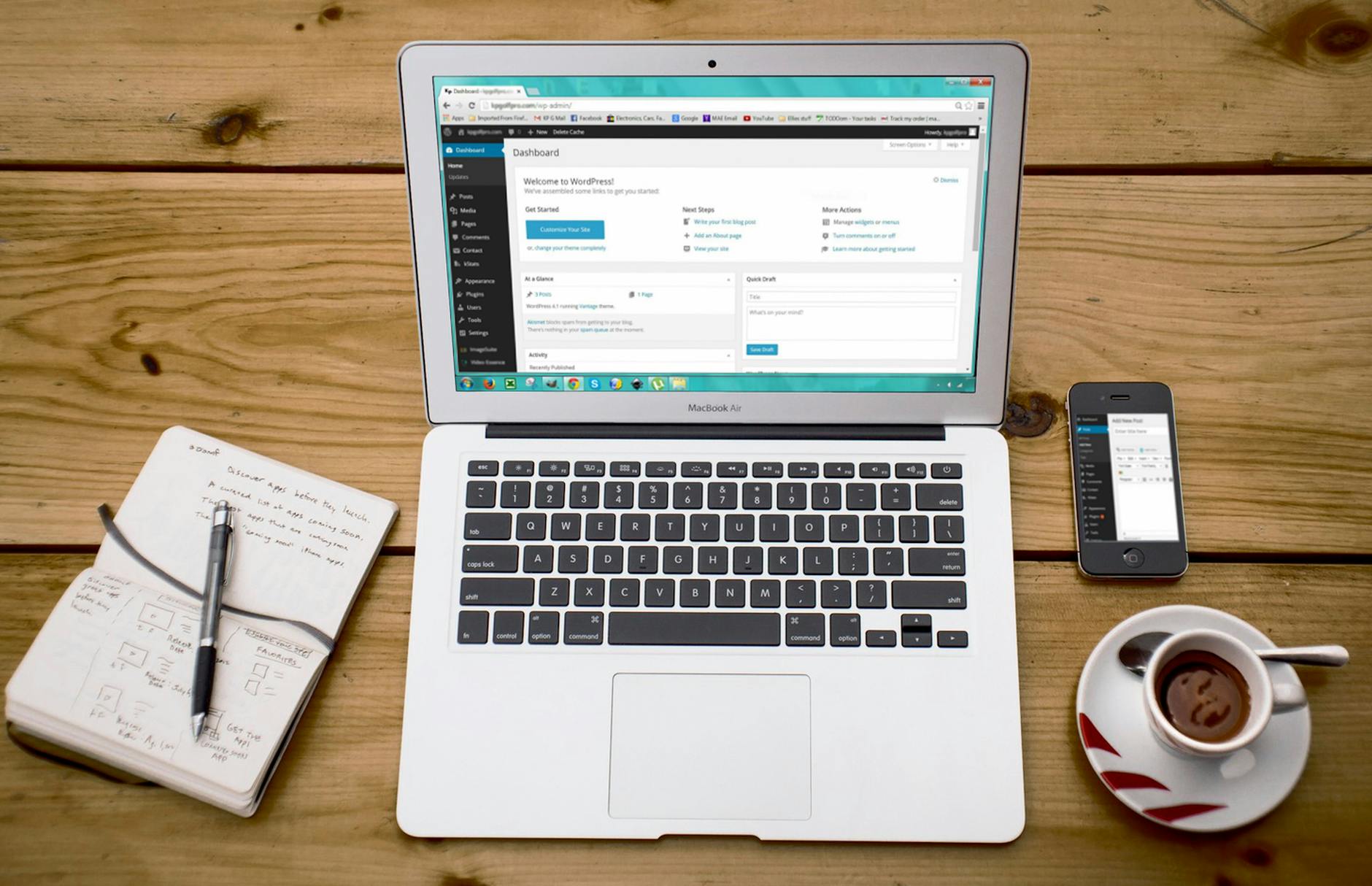
When you open your local site in the browser, you’ll see a standard WordPress front-end. To access the admin dashboard where the real work happens, click the “WP Admin” button in the Local by Flywheel interface, or manually navigate to your site URL followed by “/wp-admin”. The login page appears—enter the default username and password that Local by Flywheel generated during site setup. You’re now in a WordPress environment that’s identical to your production setup, with one critical difference: any mistakes or failed experiments stay on your computer.
This is where the value proposition becomes clear. If you’re testing a new plugin to embed stock market widgets, analyze SEO performance of your investment articles, or restructure your site’s navigation for better user experience with market data, you can do it here without affecting visitors to your live site. The comparison is stark: traditional development requires either hiring a developer to work directly on staging servers, or manually recreating your site structure elsewhere. With Local by Flywheel, you’re giving yourself—and any team members—a safe sandbox to experiment.
Managing Database and Site Files
Every WordPress site stores data in two locations: a database that holds posts, users, and configuration; and a file system that holds themes, plugins, and uploads. In Local by Flywheel, both are stored locally. You can access the files by clicking the folder icon in the Local by Flywheel interface—this opens the site’s root directory on your computer. Inside, you’ll find the standard WordPress folder structure including wp-content (where themes and plugins live), wp-admin, and wp-includes.
One important warning: do not manually edit or delete files in this directory without understanding what you’re doing. It’s easy to accidentally delete a plugin or theme folder and break your site. Instead, use the WordPress admin dashboard or the plugin/theme management interfaces to make changes. However, if you need to debug something or inspect how a custom theme is structured, direct file access is invaluable. For the database, Local by Flywheel handles backups automatically—if you significantly break something, you can recreate the site and try again without lasting consequences.

Syncing Content Between Local and Production
Once you’ve finished testing changes on your local site, you need a way to get those changes to your live investment website. Local by Flywheel doesn’t automatically sync to production—that’s intentional, because pushing the wrong content or configuration changes could damage your site. The recommended approach is to export the WordPress content you’ve created locally using the WordPress Export feature (found under Tools > Export), then import it into your production WordPress using Tools > Import.
For theme or plugin changes, the process is manual: download the modified theme or plugin files from your local site, then upload them to your production server via SFTP or your hosting provider’s file manager. This friction is actually protective—it forces you to review what you’re deploying. If you’re working with a development team and need more sophisticated sync capabilities, Flywheel’s commercial products offer deployment tools, but Local by Flywheel is intentionally isolated.
Extending Local by Flywheel for Advanced Development
As you become more comfortable with local development, you can extend Local by Flywheel’s capabilities. The application supports local add-ons—small extensions that add functionality like WP-CLI (a command-line tool for managing WordPress), Mailhog (for testing emails), and Adminer (a database GUI). You install these from the add-ons tab in Local by Flywheel and they integrate directly into your environment. For financial content sites that send subscriber notifications or automated market alerts, testing email functionality locally before deploying saves you from accidentally sending broken emails to your actual user base.
Looking forward, Local by Flywheel continues to evolve. Recent updates have improved performance and added better Docker integration, making it faster and more reliable even on lower-end machines. For investment content creators and fintech developers, the tool is becoming increasingly valuable as WordPress evolves and sites become more complex. The investment in learning Local by Flywheel today pays dividends as your site scales and you need reliable, repeatable testing infrastructure.
Conclusion
Setting up Local by Flywheel transforms how you develop and test changes to your WordPress sites. The process is straightforward enough for someone with basic computer skills, yet powerful enough for developers building sophisticated sites with custom code and complex plugin ecosystems. For anyone managing investment content, market analysis platforms, or financial news websites, the ability to test changes safely before deploying to production is invaluable—you avoid the risk of accidentally publishing incorrect market data, broken layouts, or failed plugin interactions that could drive away readers or damage your credibility.
Start by downloading the application, installing it on your computer, and creating a test site to get familiar with the interface. Once you’re comfortable navigating the WordPress admin dashboard in a local environment, you can confidently experiment with new content structures, plugin combinations, and design changes that improve your site. The 15-30 minutes spent setting up Local by Flywheel today eliminates countless hours of panic and manual cleanup when something goes wrong on your live site.
Frequently Asked Questions
Is Local by Flywheel free?
Yes, Local by Flywheel is completely free. You don’t need a Flywheel hosting account to use it, though creating one unlocks additional features and add-ons. The core application and functionality are available at no cost.
Can I run multiple WordPress sites simultaneously in Local by Flywheel?
Yes. You can create as many local sites as your computer’s resources allow. Each site runs independently with its own WordPress installation, database, and files. This is useful for testing multi-site configurations or maintaining separate sites for different content verticals.
Does Local by Flywheel work on Mac and Windows?
Yes, Local by Flywheel runs on Windows 10+, macOS 10.13+, and various Linux distributions. The interface and functionality are nearly identical across platforms, so switching between operating systems doesn’t require relearning the workflow.
How do I share my local site with team members?
Local by Flywheel doesn’t natively support remote access, but Flywheel’s commercial products offer team collaboration features. For sharing within Local by Flywheel alone, you’d need to export your content and have team members import it into their own local environments, or use other tools like tunneling services.
What happens if I run out of disk space on my computer?
Your local sites will stop functioning until you free up space. Monitor your available disk space regularly, especially if you’re storing large databases or high-resolution image libraries in your sites. Regularly clean up old local sites you’re no longer testing.